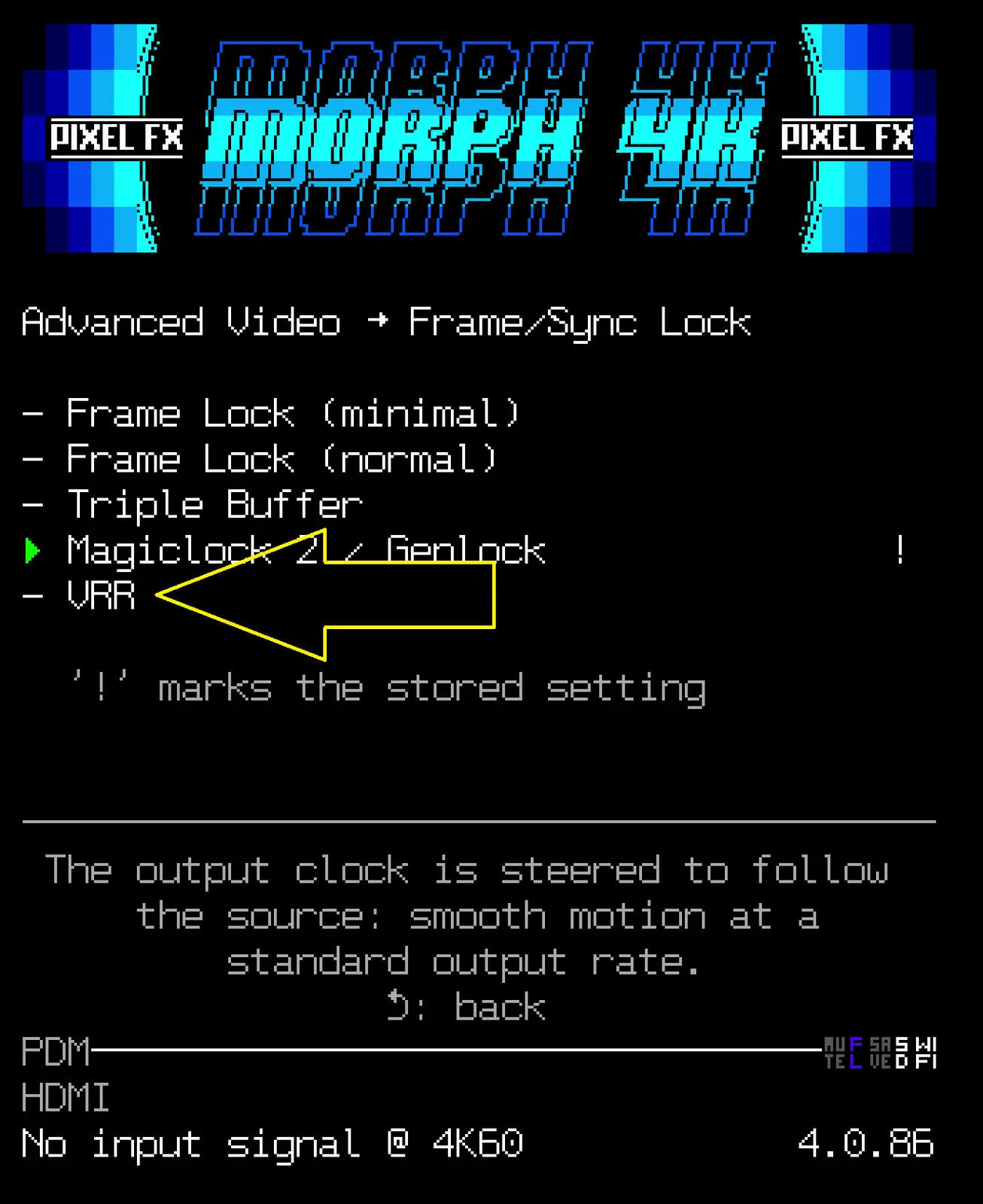
PixelFX has released Morph 4K firmware v4.0.8.6, bringing new capture options and display features to its retro video processor. The v4 releases are now distributed through the Preview channel, which users can select in the on-screen menu under System, Firmware, and Update Channel before running Update Firmware.
New capture and display options
Pressing the Mouse button at the lower right of the remote’s directional pad now automatically zooms the picture. The feature works across all modes. Variable refresh rate is available under Video, Advanced Video, and Frame/Sync Lock; PixelFX says it is intended for displays, and capture cards may not support it.
The capture controls have also been reorganized. The button below and to the left of the directional pad now captures the output signal, while TV-IN captures the input signal. Output capture can take up to two minutes and freezes the screen while it runs, but pressing the capture button again cancels it. Input capture does not freeze the image.
Output screenshots also generate an .ini file containing details about the Morph’s settings at the time of capture.
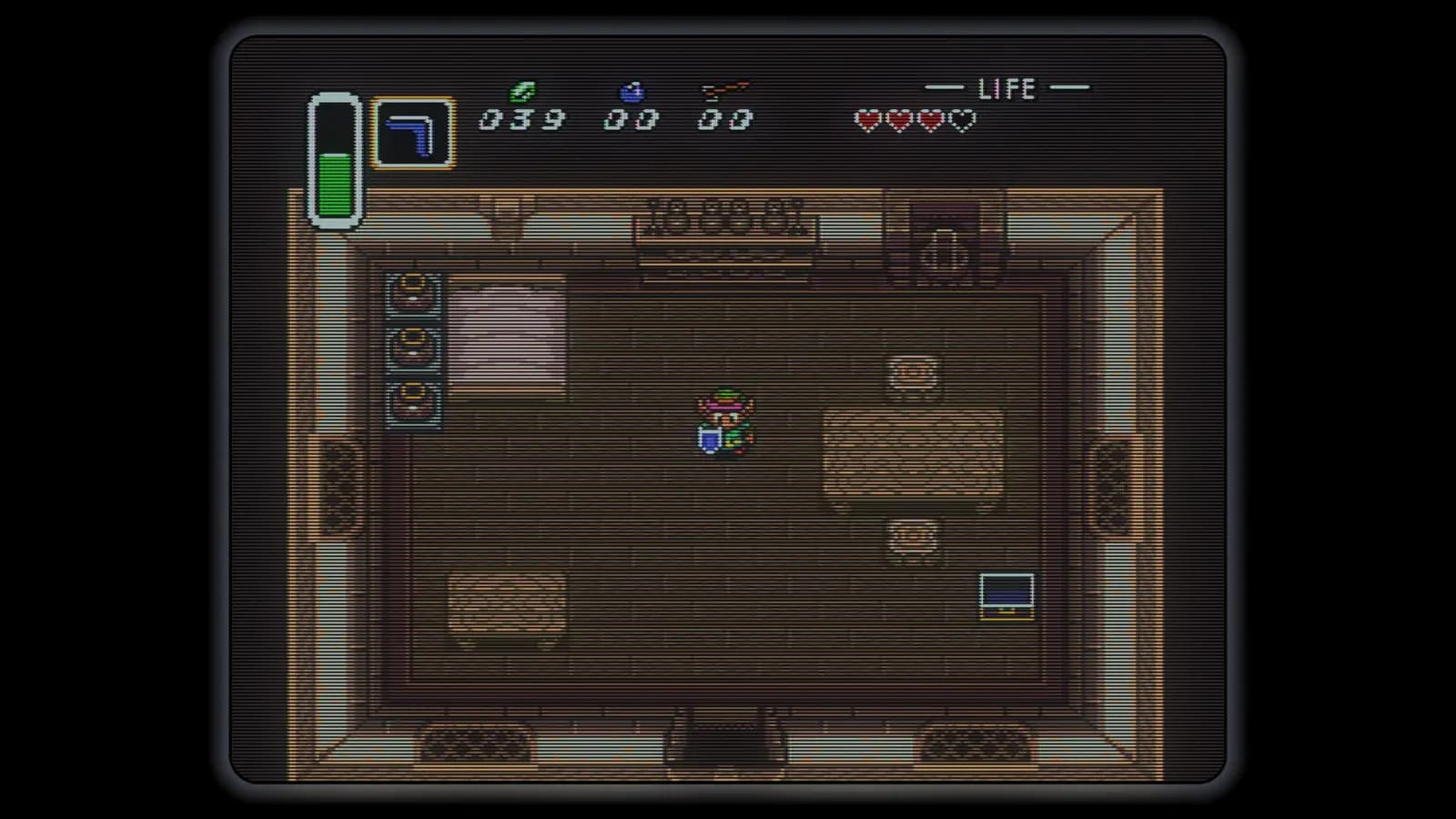
Output screenshots are available in Universal Adaptive and TATE modes; input screenshots work in Universal Adaptive. The firmware’s changelog also notes that HDR10 captures are tagged as HDR. HDR images will not display correctly on an SDR screen, so the article cautions against judging the scaler from that mismatch.
What changed in v4.0.8.6
The newest build includes three adjustments to scaling and color correction:
• Output width and height can be set one pixel at a time.
• Output height no longer jumps when the Decimator divides lines.
• Strong color-correction settings no longer switch to incorrect colors.
Recent v4 updates have also added a stable automatic aspect-ratio option, improved screenshot handling, and VRR support. PixelFX describes the firmware as still developing, with several processing modes to learn.
How to update
To install the preview build, open the Morph 4K OSD and choose Preview under System, Firmware, and Update Channel. Confirm the selection, return to the firmware menu, and choose Update Firmware. The update process is the same regardless of the version currently installed.
A note on the Morph’s processing engines
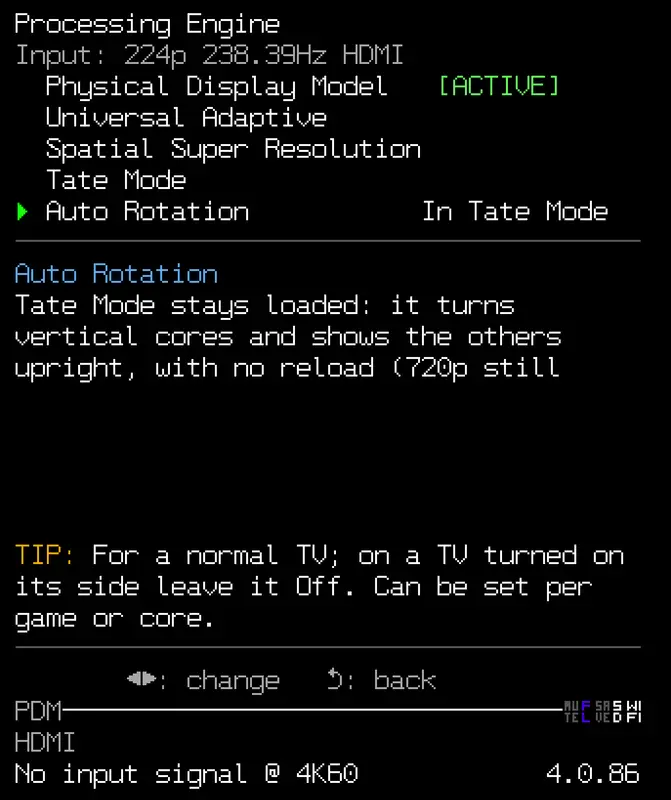
The article clarifies that the Morph 4K has four processing engines, not five. Auto Rotation is a setting for the TATE engine rather than a separate engine. Each mode has its own features, which can make the v4 firmware take time to master.
Source: RetroRGB