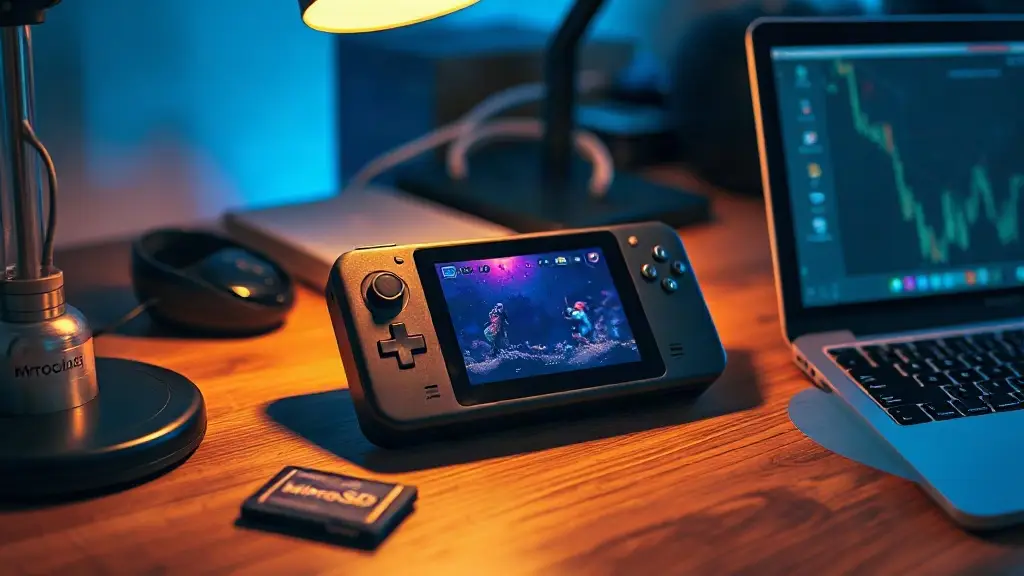
PortMaster has grown from a tool created for ArkOS into a platform that works across a range of Linux-based handheld operating systems. It brings together hundreds of PC game ports and simplifies installing them on compatible devices.
Unlike typical retro handheld emulation, PortMaster games run natively on the device. Some ports are free to install directly; others need game files that players must provide separately.
PortMaster is a convenient way to run PC ports on Linux handhelds, but compatibility can vary by device, operating system and game.
Its catalogue includes more than 500 ports, according to the guide. The platform is intended for Linux-based systems, not Android handhelds, and an internet connection is generally needed to install and update games through the app.
Where PortMaster works
Support depends on the handheld’s operating system and is continually expanding. The guide lists several compatible systems, including ArkOS, AmberELEC, ROCKNIX, muOS and KNULLI, as well as CrossMixOS for the TrimUI Smart Pro.
Supported hardware spans devices from Anbernic and PowKiddy, along with other handhelds. Compatibility is not universal, however: even devices running a supported OS can encounter problems, and some ports have additional hardware or software requirements.
• ArkOS: supports a range of Anbernic RG351 and RG353 models, the PowKiddy RGB30 and RK2023, and other devices.
• AmberELEC: supports selected Anbernic RG351 and RG552 models, plus several PowKiddy handhelds.
• ROCKNIX: covers a broad selection of Anbernic and PowKiddy devices, among others.
• muOS and KNULLI: support selected Anbernic RG35XX-family handhelds; KNULLI also supports the TrimUI Smart Pro.
• CrossMixOS: adds PortMaster support to the TrimUI Smart Pro, though missing 32-bit drivers limit which games can run.
PortMaster is often included with a compatible operating system. In KNULLI, users need to run the built-in installation script the first time. If the app is missing, it can also be installed manually from a script placed in the handheld’s Ports folder on its microSD card.
Installing and launching ports
The app separates its catalogue into featured games, all available ports, and “Ready to Run” titles. The latter can be installed directly. For commercial ports, PortMaster typically installs the launcher and required runtime files, while the player supplies the game’s data files.
Those files may come from different versions or storefronts, depending on the game. PortMaster’s game-specific instructions explain what is needed and where to place it on the microSD card. The guide’s examples include transferring files for Half-Life, Balatro, Shovel Knight, Undertale and Stardew Valley.
• Ready to Run: choose a game in the app, install it, then find it in the operating system’s Ports section.
• Commercial ports: install the port package, obtain the required game data from a supported version, and copy it into the specified folder.
• Offline installation: use the full installer and place a downloaded game archive in PortMaster’s autoinstall folder on the card.
Some projects use other source files. AM2R, for instance, requires an Android APK, while the Render96ex port of Super Mario 64 needs a ROM file. Such requirements are specific to each port, so the individual setup instructions matter.
Compatibility and troubleshooting
Ports are experimental projects, and their developers work across many combinations of devices, firmware, runtimes and game files. That complexity can lead to crashes or games that refuse to launch. Each port’s folder may contain a log file that can help identify the problem.
Some games are not practical to port. Their engine, dependencies or reliance on a platform-specific technology can make them incompatible, even if they seem like a good fit for a handheld. The guide advises checking a game’s requirements before expecting a port to work.
PortMaster runs games natively, but it does not make every PC game compatible with every handheld.
Technical note: A port adapts a game to run on a different operating system or hardware environment. PortMaster organizes and installs these adaptations; it is not itself an emulator, and commercial game data may need to be supplied separately.
Getting started
Before installing a game, check that the device is running a supported Linux-based operating system, connect to the internet if available, and consult the port’s specific file requirements. If a game fails, its log and the PortMaster community can offer clues about whether the issue is the port, the runtime or the device setup.
The guide was last updated on July 24, 2024. Its device and compatibility details reflect that date, and support may have changed since then.
Source: Retro Game Corps