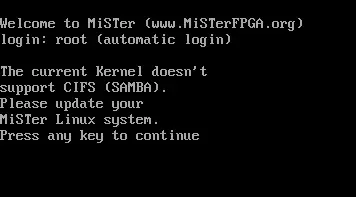
A MiSTer setup that loads games from a network share can stop showing its network folder, even when the Linux version is not the problem. In this case, the culprit was the CIFS mount script: replacing it with a newer version restored network loading.
Update the mount script and settings
The updated script includes newer features. After installing it, open the file in a text editor and enter the required connection details:
• Server name
• Username
• Password
For a RetroNAS setup, the server name is “retrosmb”; for other network shares, use the name assigned to your server.
Choose whether to mount at startup
Find the “MOUNT_AT_BOOT” setting. Leave it as “false” if you want to run the mount script manually. Set it to “true” to have MiSTer connect to the share automatically after joining the network.
The issue was the CIFS file itself, not the Linux version.
Once the configuration is saved, power on the MiSTer, wait for the network connection, then run the mount script. A successful run should make the network share available again.
A possible Wi-Fi improvement
The updated CIFS file also appeared to help with Wi-Fi. The writer reports that Wi-Fi had been unreliable on other MiSTer systems and had never worked on the SuperStation One. After switching scripts, Wi-Fi connected consistently in their tests.
This is an individual report rather than a confirmed fix for every setup. Still, it suggests that disabling CIFS may not be necessary for reliable Wi-Fi when using this newer script.
Source: RetroRGB