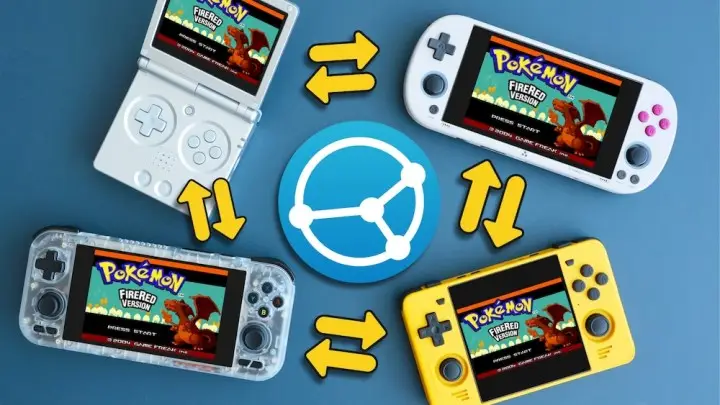
Syncthing can synchronize RetroArch saves and save states across a PC and multiple retro handhelds without relying on a cloud service. The peer-to-peer tool is available for Windows, Linux, Mac and Android, while several handheld operating systems include native support.
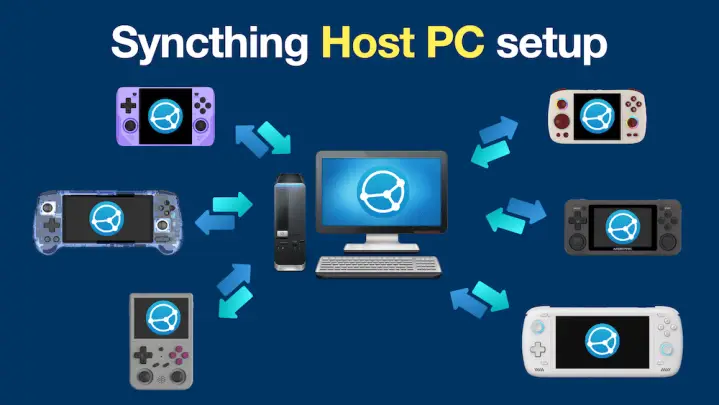
A PC or another always-on device works well as a central host: each handheld can sync with it as needed, and it can also serve as an informal backup. Once devices have been configured, they can sync over the internet when the host is running, not just while connected to the same home network.
What to expect from Syncthing
Syncthing can move more than RetroArch saves, but save compatibility takes some planning. RetroArch may organize save states by core, so devices generally need to use the same core to share them. Modified or non-standard cores can cause problems.
In-game memory saves, often called SRAM files and using the .srm extension, are usually more portable across cores than save states, which use the .state extension. Save states can be convenient, but are easier to overwrite or run into compatibility issues.
For the most consistent results, rely mainly on in-game saves and treat save states as the riskier, more convenient option.
Syncthing also needs time and network access to finish a transfer. Fully quit a game and RetroArch before powering down, then let a handheld connect and sync before starting a game. Background syncing can use extra battery, particularly on Android.
Prepare RetroArch on every device
Consistent files and settings are essential. RetroArch names saves from ROM filenames, so a standardized library with matching game filenames helps devices find the right saves. Configure the same save options on every handheld and on the host computer.
The recommended setup sorts saves and save states by core, turns off sorting by content directory, and keeps saves outside the ROM folders. For users who enable automatic save states, automatic indexing and a rolling set of 10 states can provide a way back if a file is overwritten. Manual save-state controls remain an option.
Backups and save-state precautions
Some operating systems place saves alongside ROMs by default. Move existing saves to the configured save location after changing those settings, or the files may not sync as intended.
Conflicting save-state increments can also make one device load an older state. RetroArch’s Quick Menu lets players change the increment and try another state. Keeping version backups in Syncthing adds a further safeguard.
Choose a host and connect devices
A Windows, Linux or Mac computer can act as the host, as can some Android devices or a Raspberry Pi. A dedicated computer that stays on at home offers a practical hub for syncing several handhelds, although direct device-to-device syncing is also possible.
After installing Syncthing, add the folders containing the RetroArch save files and save states, then connect each handheld to the host. The guide covers setup across Android, Steam Deck, Windows handheld PCs and several Linux-based handheld systems, including ROCKNIX, ArkOS, muOS, KNULLI, CrossMix OS, Onion OS and spruceOS.
Short technical note: save files versus save states
A normal in-game save records progress through the game’s own save system. A save state captures an emulator’s broader running state, so it is more dependent on the core and can be less portable between devices. That distinction is why syncing both types calls for extra care.
Source: Retro Game Corps