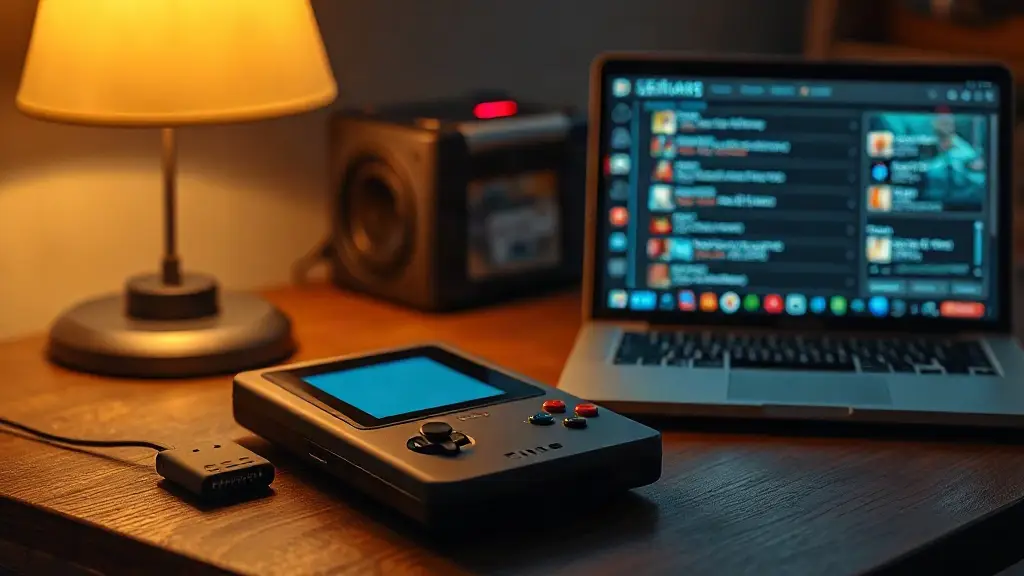
MinUI is a streamlined launcher for compatible retro handhelds, built around a simple idea: spend less time configuring menus and more time playing. This practical overview covers the essentials of setting it up, from preparing a microSD card to arranging games into collections.
Developer Shaun Inman first created MinUI in 2021 for the TrimUI Model S. Its appeal is its restraint: although some handhelds can run a wider range of systems, MinUI concentrates on a defined set of classic platforms and keeps navigation straightforward.
MinUI’s strength is its simplicity: a focused menu, familiar systems, and very little setup once the files are in place.
What MinUI supports
The default BASE package covers seven systems. An optional EXTRAS package adds more, so you can tailor the menu to the platforms you want to play.
• BASE: Game Boy, Game Boy Color, Game Boy Advance, Nintendo Entertainment System, Super Nintendo Entertainment System, Sega Genesis, and PlayStation.
• EXTRAS: Neo Geo Pocket and Color, Pico-8, Pokémon mini, Sega Game Gear, Sega Master System, Super Game Boy, TurboGrafx-16 and TurboGrafx-CD, and Virtual Boy.
MinUI is available for a range of handhelds, including models from Anbernic, Miyoo, Powkiddy, TrimUI, and other manufacturers. Check the readme included with the release for device-specific instructions before installing; the correct folder and process can differ between handhelds.
Prepare the microSD card
A new card of 32GB or less can generally be used as-is. For cards larger than 32GB, the guide recommends formatting as FAT32. If you are reusing a card, format it first; the steps differ slightly between Windows and macOS.
• Windows: Use Rufus, select the microSD card, choose “Non bootable” and FAT32, then start the format.
• Mac: Open Disk Utility, select the card, choose Erase, and set the format to “MS-DOS (FAT32).”
For classic 8-bit and 16-bit libraries, 16GB or 32GB can be enough. Larger cards leave more room for disc-based games, whose files take up considerably more space. Choose capacity based on the systems and games you plan to keep on the device.
Install MinUI and add files
Download both the BASE and EXTRAS archives from the MinUI release page. Extract them, then copy the required BASE folders and files to the root of the microSD card. The device-specific folder is essential: use the readme to identify the right one. Copy the EXTRAS files as well if you want the additional systems.
BIOS files go into specific folders and some systems require them to run correctly. File names are case-sensitive. The guide lists BIOS locations for Game Boy, Game Boy Color, Game Boy Advance, Sega CD, PlayStation, TurboGrafx-CD, Famicom Disk System, Pokémon mini, and Super Game Boy. BIOS files and game ROMs may be copyrighted, so users must ensure they have the right to use any files they add.
Follow the release’s readme for your exact handheld, and double-check folder names and BIOS spelling before troubleshooting the setup.
To add games, place each file in the corresponding folder inside Roms. MinUI hides empty folders, helping keep the menu uncluttered. You can rename a folder, provided its emulator association remains in parentheses, or add a numbered prefix to change its position in the menu.
Organize games and collections
Several small touches make the library easier to manage. Rename a folder with a “.disabled” suffix to hide it without removing its files. You can also create extra folders for the same emulator association, or combine systems that share a core—for example, Sega CD and Sega 32X games can sit alongside Genesis games in the same folder.
• Use numbered prefixes such as “01)” to control menu order.
• Create a map.txt file in the Roms folder to display friendlier folder names without renaming the actual folders.
• Make a folder called Collections at the card’s root, then create text files listing game paths to build custom collections.
A quick note on microSD formatting
FAT32 is an older file system that remains useful for broad compatibility with embedded devices and handhelds. Because Windows’ built-in formatting tools may not offer FAT32 for larger cards, the guide suggests a dedicated utility; macOS includes the option in Disk Utility.
MinUI’s appeal is not a long list of advanced options. It is the clean, predictable path from powering on a handheld to choosing a game—an especially useful approach for a device meant to be picked up and played without a setup deep-dive.
Source: Retro Game Corps